
Top 10 Reasons Your Printer Keeps Jamming
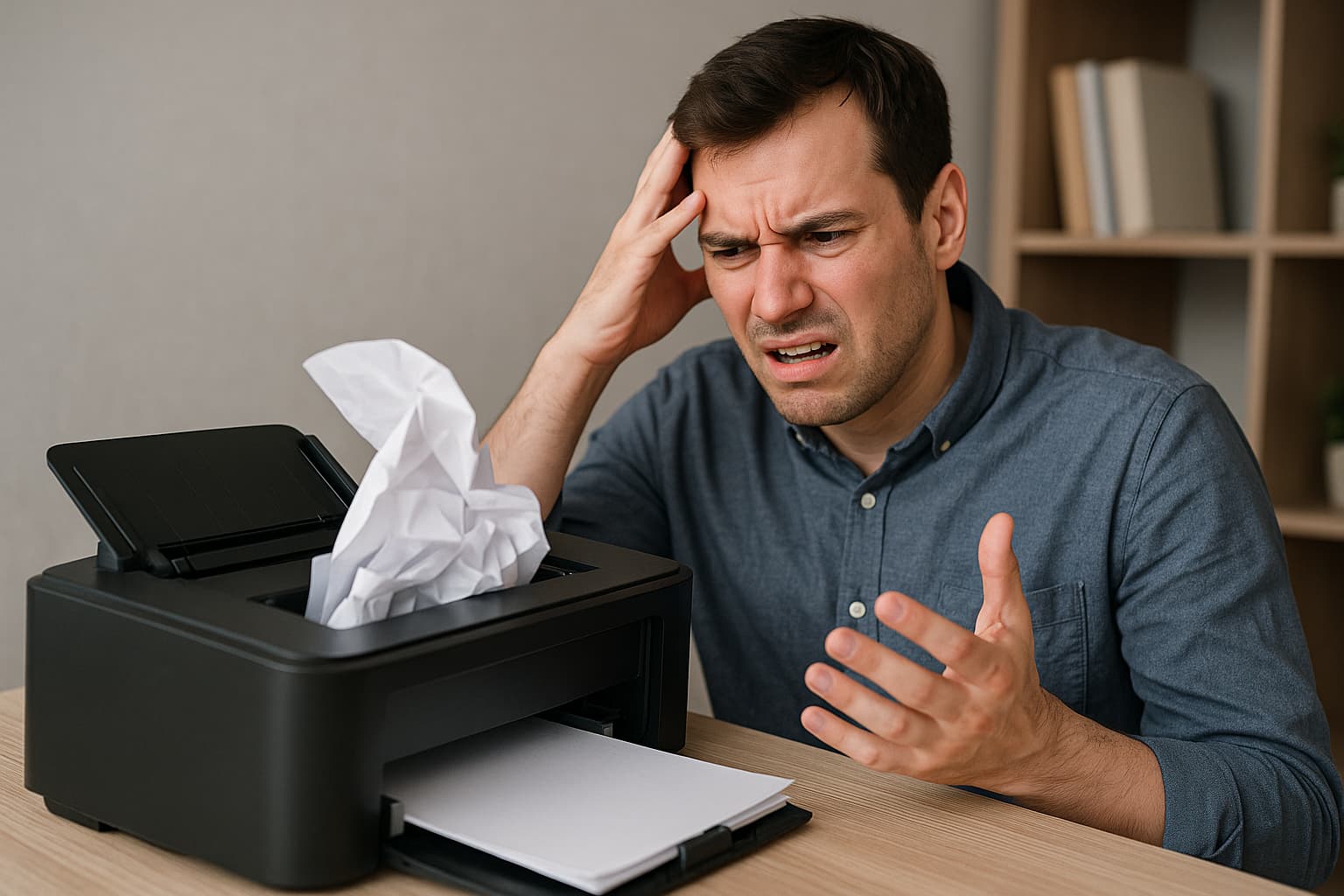
Printer paper jams are one of the most frustrating problems for both home and office users. You hit “print,” only to hear the dreaded crunching sound — and your important document is stuck halfway inside the machine. Understanding why this happens is the first step to keeping your printer running smoothly and saving yourself time, money, and stress. Here are the top 10 reasons your printer keeps jamming and practical tips to prevent them.
1. Using the Wrong Paper Type
Not all paper is created equal. Thin, damp, or textured paper can easily get stuck inside rollers. Always check your printer manual for recommended paper weights and finishes. Using high-quality, printer-approved paper significantly reduces the chances of jams.
2. Overloading the Paper Tray
It’s tempting to fill the tray to its maximum, but overstuffing leads to misfeeds and jams. Always load the paper stack below the maximum fill line and ensure the stack is neat and aligned properly before printing.
3. Incorrect Paper Alignment
Misaligned paper can feed unevenly and cause jams. Before inserting paper, tap the stack on a flat surface to align the edges. Also, adjust the tray’s paper guides snugly against the paper without bending it.
4. Dirty or Worn-Out Rollers
The rollers inside your printer grip and pull paper through. Over time, dust, paper debris, or wear can make them lose traction. Cleaning the rollers with a lint-free cloth and replacing them when worn out helps keep your printer jam-free.
5. Damaged or Wrinkled Paper
Old, folded, or creased paper is a jam waiting to happen. Store paper in a dry, flat area and inspect it before loading. If sheets are bent or torn, discard them to prevent feeding issues.
6. Foreign Objects Inside the Printer
Paper clips, staples, or torn paper scraps can hide inside the printer and block moving parts. Always check the paper path and trays for any foreign objects, especially if jams happen frequently in the same spot.
7. High Humidity or Damp Paper
Humidity causes paper to curl or stick together. If your office is humid, keep paper in its original packaging until use and consider a dehumidifier. You can also fan the stack of paper before loading to prevent sheets from sticking.
8. Using the Wrong Paper Size
Printing with paper that doesn’t match the settings in your printer driver can cause misfeeds. Always ensure your print settings match the size and type of paper in the tray. Mismatches confuse the printer’s feeding mechanism.
9. Mechanical Problems or Worn Parts
Sometimes, persistent jams indicate deeper mechanical issues, like a worn fuser or misaligned parts. If you’ve checked all the basics and jams still occur, it might be time for a professional inspection or servicing.
10. Neglecting Regular Maintenance
A printer, like any machine, needs regular care. Skipping routine cleaning and servicing can lead to dust buildup, worn-out parts, and frequent jams. Follow your manufacturer’s maintenance schedule and use the printer’s cleaning cycles if available.
What to Do When a Jam Happens
Even with the best care, jams can still happen. When they do, avoid pulling the paper out forcefully. Always follow your printer’s jam removal instructions to prevent damaging internal parts. Gently open access panels, remove the stuck paper in the direction of the paper path, and check for any scraps left behind.
If you are still facing the jamming issue, feel free to join our 24/7 live chat support for fast and reliable solution.
Conclusion
A printer paper jam is annoying but often preventable. By using the correct paper, keeping your printer clean, and performing regular maintenance, you can dramatically reduce the chances of a jam ruining your workflow.
If you find that your printer jams more than it prints, despite following all these tips, it may be time to upgrade to a newer, more reliable model — or get your current one checked by a certified technician.
For more tips on keeping your printer in top shape and to explore the best printer options for your needs, stay tuned to our blog. Happy printing!


